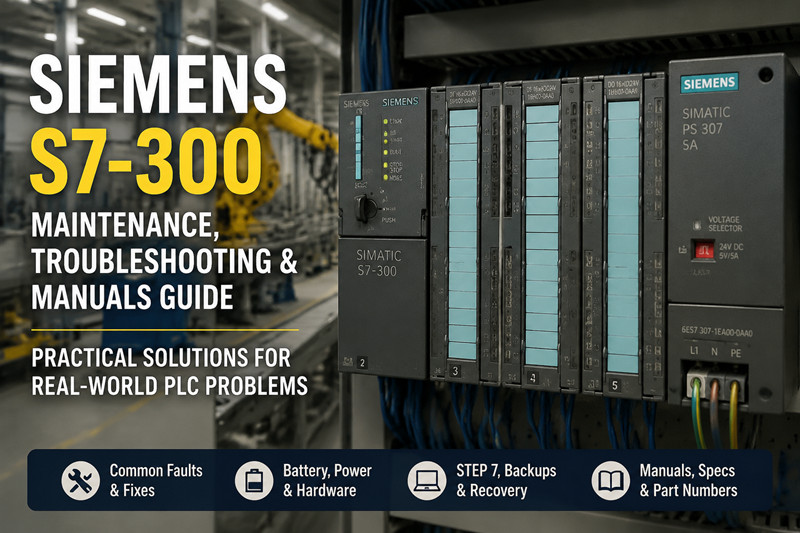
Siemens S7-300: Maintenance, Troubleshooting & Manuals Guide
Jun 18, 2026
The 3 AM Phone Call
The line went down at 2:47 AM. A Siemens S7-300 CPU on a bottling line had faulted with an LED pattern no one on the night shift had seen before — SF red, BF flashing, and the CPU in STOP mode. The plant electrician cycled power, no change. Swapped the memory card from a spare unit, no change. Three hours of lost production later, someone finally checked the backup battery voltage: 1.8 V. Dead battery on a CPU315-2 DP (6ES7 315-2AG10-0AB0) had corrupted the RAM-based user program. No backup file existed on the maintenance laptop. That scenario plays out in hundreds of factories every year, and almost all of it is preventable with basic Siemens S7-300 troubleshooting and maintenance.
The S7-300: Why It's Still Running Production Lines
Siemens launched the SIMATIC S7-300 family in the mid-1990s, and despite being officially designated for phase-out, these PLCs are still the backbone of manufacturing lines worldwide. The S7-300 sits between the micro-class S7-200 and the rack-based S7-400 — a modular mid-range controller capable of handling discrete manufacturing, process control, and motion applications.
What makes the S7-300 stubbornly persistent is its installed base. A company that spent $50,000 on I/O modules, backplanes, and engineering in 2005 isn't going to forklift-upgrade a working line just because Siemens stopped actively selling the platform. Many S7-300 systems from the late 1990s and early 2000s are still running daily production, held together by knowledgeable maintenance teams and a healthy aftermarket parts supply.
The most common CPU models still in service include the CPU315-2 DP (6ES7 315-2AG10-0AB0), the CPU314, and the CPU317-2 PN/DP for lines that need Profinet connectivity. Power comes from the PS307 (6ES7 307-1EA00-0AA0) series, and analog inputs are typically handled by the 8-channel SM331 module (6ES7 331-7KF02-0AB0). These specific model numbers matter because replacement parts, memory cards, and battery types all track back to them.
For maintenance teams, the S7-300 presents a unique challenge: the hardware is aging, original documentation can be hard to find, and the engineering software (STEP 7) runs on operating systems that IT departments would rather not support. Knowing where to find a *siemens s7 300 manual* or a *siemens s7 300 manual pdf* before a breakdown happens is the difference between a 20-minute repair and a 20-hour ordeal.
Common Failure Modes in the Real World
Power Supply Issues — PS307 (6ES7 307-1EA00-0AA0)
The PS307 is the most commonly replaced component on an S7-300 rack. These switch-mode supplies fail with age — dried-out electrolytic capacitors, failing fans (on the 10 A version), and intermittent output under load. The warning signs are intermittent system resets, random SF LEDs on multiple modules, or a CPU that boots into STOP mode but runs fine after a power cycle.
Test the PS307 with a multimeter at the output terminals. The 24 V DC versions should deliver between 24.0 V and 28.8 V under load. Anything below 22 V and the CPU will drop into STOP mode or behave erratically. If the supply passes voltage tests but you're still seeing intermittent failures, swap it. They're inexpensive relative to the downtime they cause.
CPU Faults — CPU315-2 DP (6ES7 315-2AG10-0AB0)
The CPU315-2 DP is a workhorse, but it has failure patterns worth knowing. The most common is a corrupted user program caused by a dead backup battery (6ES7 971-0BA00). When the battery voltage drops below approximately 2.5 V, the RAM-based program loses integrity. On the next power-up, the CPU goes to STOP with SF red and no amount of cycling will bring it back.
The fix is reloading the program via MPI or Profibus from STEP 7 — assuming someone saved a backup. If no backup exists, you're looking at reverse-engineering logic from a working sister machine or paying for a full re-commission.
Other CPU failure modes include Profibus communication faults (BF LED flashing or solid red), which are usually wiring or connector issues at the Profibus DP plug rather than the CPU itself. Try swapping the bus connector before replacing the CPU.
Memory Card Failures
The S7-300 uses MMC (MultiMediaCard) format memory cards for program storage. These cards have a limited write-cycle life, and cards from the early 2000s are now reaching end-of-life. Symptoms include the CPU failing to load the program from the card, CRC errors during boot, or the card being recognized in one CPU but not another.
The original Siemens MMCs are discontinued and expensive on the secondary market. Third-party equivalents exist, but reliability is inconsistent. A better strategy is to maintain working backups on a laptop and use the memory card slot as a boot medium, not primary program storage.
I/O Module Faults — SM331 (6ES7 331-7KF02-0AB0)
Analog modules are the most sensitive to electrical noise and wiring errors. The SM331 8-channel AI module frequently fails when field wiring shorts 24 V to a signal input channel. Channel diagnostics LEDs (if equipped) or the SF group fault LED will light up.
The fix is usually replacing the module, but always check the wiring first. A quick continuity test between each signal wire and ground will catch the 90% case.
For more detailed *plc siemens s7 300 troubleshooting* approaches, the PLC section on tztechio.com has compatibility data and spare parts cross-references that save hours of manual research.
Deep Dive: Software, Batteries, Firmware, and Backups
STEP 7 Software Compatibility
The S7-300 programs are engineered using Siemens STEP 7. The critical compatibility table:
STEP 7 Version | Supports | Windows
STEP 7 V5.4 | S7-300 all CPUs | XP, Vista
STEP 7 V5.5 | S7-300 all CPUs | Win7 (32/64)
STEP 7 V5.6 | S7-300 all CPUs | Win7, Win10 (64-bit)
TIA Portal V13+ | S7-300 (limited) | Win7, Win10
The original STEP 7 Classic (V5.x) is the safest choice for S7-300 work because TIA Portal's support for S7-300 is limited and certain older CPU firmware versions are not fully compatible. TIA Portal V13 through V17 can handle S7-300 CPUs with firmware V3.x and above, but if you're supporting a machine from 2003 running firmware V2.x, you need STEP 7 Classic.
Finding a working *siemens step 7 300 manual* or a *siemens s7 300 manual programming* PDF is essential for anyone maintaining these systems. The official Siemens support portal still hosts many of these documents, but the search filters can be tricky. Use the exact model number as the search term for best results.
Battery Replacement — 6ES7 971-0BA00
The S7-300 backup battery (6ES7 971-0BA00) is a 3.6 V lithium cell that maintains the user program in RAM when the main power is off. Siemens recommends replacement every 3-4 years. In practice, most plants ignore this until the CPU loses its program.
Replacement procedure:
1. Put the CPU in STOP mode.
2. Note the battery indicator — the yellow BATF LED means low battery.
3. Open the battery compartment door on the front of the CPU.
4. Remove the old battery (observe polarity).
5. Insert the new battery — 6ES7 971-0BA00 or any compatible 3.6 V lithium cell with the correct connector.
6. Power cycle the system to verify the program loads correctly.
7. Document the replacement date on the cabinet door.
The battery only maintains the RAM when the PLC is powered off. If the system stays powered on continuously, a dead battery causes no problems until the next planned or unplanned shutdown. Always replace the battery during a scheduled outage — never hot-swap it on a running line unless you have a verified backup file.
Firmware Updates
S7-300 CPUs rarely need firmware updates unless you're adding new hardware modules or resolving a specific bug. Firmware files are available from the Siemens Industry Online Support portal. The update process uses a memory card:
8. Download the firmware update file (a .UPD file for S7-300).
9. Copy it to an MMC card.
10. Insert the card in the CPU while it's powered on.
11. The CPU detects the firmware file and prompts an update.
12. Confirm, wait for completion (CPU restarts automatically).
Firmware updates wipe the user program. Always back up the program before updating firmware.
Backup Procedures
A proper S7-300 backup strategy has three layers:
· Layer 1: Full program upload from CPU to STEP 7 (File > Upload Station to PG). Save the entire project.
· Layer 2: An MMC card with the current program, stored in a static-safe bag inside the cabinet.
· Layer 3: An offline archive of the STEP 7 project (zipped or saved to a network share).
Label every backup with the machine name, date, and CPU firmware version. The worst time to discover that a backup is from 2017 is when your CPU fails in 2025.
Pricing & Availability of S7-300 Spare Parts
Siemens officially discontinued the S7-300 family for new sales, though support continues for existing installations. This means new-old-stock (NOS) genuine Siemens parts command premium prices:
Component | Typical Price Range (Second Market)
CPU315-2 DP (6ES7 315-2AG10-0AB0) | $400 – $1,200
PS307 5A (6ES7 307-1EA00-0AA0) | $100 – $300
SM331 AI 8x12bit (6ES7 331-7KF02-0AB0) | $200 – $600
Backup Battery (6ES7 971-0BA00) | $15 – $40
MMC 64KB | $30 – $100
Used and refurbished parts are available from industrial surplus dealers, eBay Industrial, and specialized PLC distributors. Quality varies significantly. A refurbished unit from a reputable supplier that tests under load is worth the 20-30% premium over untested "as-is" surplus.
Budget-conscious plants should identify the top 5 most failure-prone modules on each S7-300 system and keep spares on the shelf. For most lines, that means one spare PS307, one spare CPU, one spare of each I/O module type, and two spare batteries. The inventory cost is usually under $2,000 per line and pays for itself the first time a module fails at 3 AM.
Frequently Asked Questions
Q: Can I program an S7-300 without STEP 7?
A: No. The S7-300 requires Siemens STEP 7 (Classic V5.x or TIA Portal) for programming, configuration, and diagnostics. Open-source alternatives like OpenPLC do not support S7-300 hardware.
Q: What does the red SF LED on my CPU315-2 DP mean?
A: The SF (System Fault) LED indicates a hardware fault, a programming error, or a communication problem. Connect STEP 7 and check the diagnostic buffer (PLC > Module Status > Diagnostic Buffer). The buffer shows the exact error with a timestamp.
Q: How long does the S7-300 backup battery last?
A: Siemens rates the 6ES7 971-0BA00 battery for 3-4 years in storage or unpowered PLC. In practice, if the PLC is powered on continuously, the battery lasts its full shelf life (about 5 years from manufacture date). Replace it every 3 years during planned maintenance.
Q: My S7-300 CPU won't boot after a power outage. The SF LED is solid red. What now?
A: 90% chance it's a corrupt program from a dead backup battery. Replace the battery, then reload the program from STEP 7 or an MMC card. If the memory card has the program, insert it and power cycle. The CPU should copy the program from the MMC to RAM.
Q: Is the S7-300 still supported by Siemens?
A: Siemens announced the phase-out of the S7-300 family, but the product is not fully discontinued for support. The Siemens Industry Online Support portal still provides manuals (including *siemens s7 300 manual* and *siemens simatic s7 300 manual* PDFs), firmware updates, and technical support for existing installations.
Q: Can I replace an S7-300 with a newer Siemens PLC without rewiring?
A: Direct drop-in replacement is not possible. The S7-1200 and S7-1500 families use different form factors, backplane connections, and engineering software (TIA Portal only). Replacement requires a new panel layout, rewiring, and program migration. Budget at least 40 engineering hours per CPU for a full migration.
Q: What's the cheapest way to get a *siemens s7-300 pdf* manual?
A: All official S7-300 manuals are free from the Siemens Industry Online Support portal (support.industry.siemens.com). Search by exact model number (e.g., "6ES7 315-2AG10-0AB0 manual") for the most relevant results. Third-party document aggregation sites often charge for the same PDFs that Siemens hosts for free.
Q: How do I know if my SM331 analog module is faulty?
A: Check the SF group fault LED. Then disconnect all field wiring and supply a known 4-20 mA or 0-10 V signal from a calibrator. If the channel reads correctly, the module is fine and the problem is in the field wiring. If it reads incorrectly or shows no signal, the channel is likely damaged, typically from overvoltage or short-circuit conditions.
Maintenance Checklist Summary
A quarterly S7-300 maintenance pass takes 30 minutes per rack and catches the most common failure modes before they cause downtime:
13. Inspect PS307 output voltage under load (24-28.8 V DC).
14. Check CPU BATF LED — replace battery if yellow.
15. Verify all I/O module SF LEDs are off.
16. Open STEP 7 and read the CPU diagnostic buffer — clear old entries.
17. Verify the MMC card is seated properly.
18. Upload and archive the current program.
19. Document any LED patterns or error messages observed.
20. Check Profibus connectors for tightness and correct termination resistors.
Most S7-300 failures are not sudden. They announce themselves through intermittent faults, borderline power supply voltages, or LEDs that maintenance crews tuned out months ago. A disciplined approach to monitoring, documentation, and spare parts inventory turns the S7-300 from a reliability risk into a known quantity — one that keeps running until the plant decides it's time to modernize.